 uk
uk



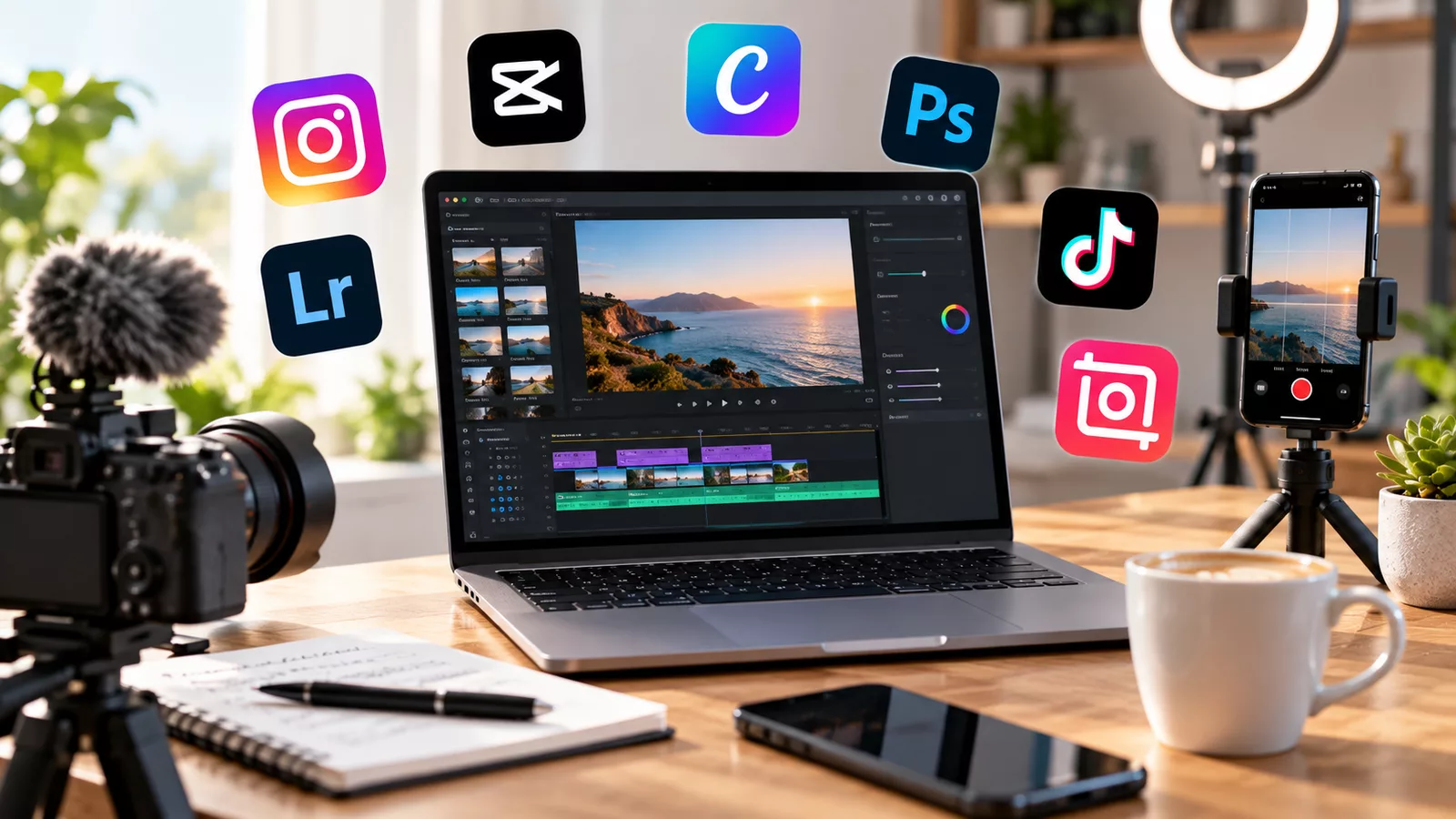
The best content creation apps in 2026 are not necessarily the apps with the longest feature lists. They are the tools that remove a real bottleneck from your workflow. Canva and Adobe Express can handle visual content, CapCut and Descript cover different types of video production, while Buffer can take finished content and manage publishing across multiple social channels.
The problem is that the categories increasingly overlap. Design apps now edit video. Video editors generate captions and scripts. Scheduling platforms include AI assistants. Writing tools can generate images, and many apps offer some form of automation.
That makes it easy to pay for several tools that solve almost the same problem.
For most individual creators and small businesses, a three-to-five-app stack is enough. The goal is to choose one strong tool for each important stage of your workflow rather than subscribing to every popular content creation app.
Best Content Creation Apps in 2026 at a Glance
The right app depends on what you create. A TikTok creator needs a different workflow from a blogger, podcaster or small business publishing branded posts across several platforms.
The comparison below provides a starting point before looking at each app in detail.
| App | Best for | Free option | Paid pricing | Main strength |
|---|---|---|---|---|
| Canva | Graphics and all-around visual content | Yes | Pro $180/year | Templates and easy design |
| CapCut | Short-form video | Yes | Varies by region/platform | Fast social video editing |
| Adobe Express | Branded visual content | Yes | Premium $9.99/month | Adobe ecosystem and assets |
| Descript | Video, podcasts and transcription | Yes | Creator $24/month annually | Text-based editing |
| Buffer | Social publishing | Yes | Essentials from $5/month/channel annually | Scheduling and distribution |
| Notion | Planning and content calendars | Yes | Paid plans available | Organization |
| Google Docs | Writing and collaboration | Yes | Free for personal use | Simple collaborative drafting |
| DaVinci Resolve | Advanced video editing | Yes | Free version available | Professional video editing |
| Adobe Premiere | Professional video production | Trial/limited access varies | Subscription | Advanced editing workflow |
| Lightroom | Photo editing | Limited/trial varies | Subscription | Photography workflow |
| Audacity | Audio editing | Yes | Free | Powerful free audio editing |
| Riverside | Remote recording | Yes | Paid plans available | Remote audio/video recording |
| Grammarly | Writing and editing | Yes | Paid plans available | Writing assistance |
| ChatGPT | Ideation, drafts and repurposing | Yes | Paid plans available | Flexible AI assistance |
| Trello | Simple editorial workflow | Yes | Paid plans available | Visual content planning |
Prices and plans can change, and regional taxes or app-store pricing may affect the final amount. Do not choose an app based on price alone – choose it based on which paid feature actually removes a problem from your workflow.
1. Canva – Best All-Around Content Creation App
Canva remains one of the easiest content creation apps for people who need graphics without learning professional design software. It can produce Instagram posts, presentations, YouTube thumbnails, short videos, documents, ads and many other visual assets from the same interface.
The free version is unusually capable. As of 2026, Canva lists more than 1.6 million templates and millions of visual and audio assets on its Free plan. It also includes 5 GB of cloud storage.
Canva Pro costs $180 per year for one person on the current U.S. annual plan. It adds premium assets, expanded AI usage, 100 GB of storage, additional Brand Kits, background removal, resizing and other premium tools.
Canva pros
- Very easy for beginners.
- Large template library.
- Graphics and basic video in one app.
- Useful free plan.
- Brand tools for repeat content.
- Social scheduling on Pro.
- Works for both individual creators and businesses.
Canva cons
- Template-heavy designs can look repetitive.
- Advanced video editing is limited compared with dedicated editors.
- Many desirable assets and AI features require a paid plan.
- Professional designers may find the workflow restrictive.
Best for: creators, freelancers and small businesses that need one visual tool for many different formats.
2. CapCut – Best Content Creation App for Short Videos
CapCut is particularly strong for TikTok, Instagram Reels, YouTube Shorts and other vertical video. Its combination of timeline editing, captions, effects, templates and AI-assisted tools makes it accessible even when you have little traditional editing experience.
The free version can be enough for many creators. Paid plans unlock additional templates, effects, AI functionality, storage and other premium features.
One pricing detail matters in 2026: CapCut does not have one reliable global subscription price. CapCut states that Pro pricing can vary by region, device, platform, taxes and promotions. The current price displayed inside your account or checkout should therefore be checked before subscribing.
CapCut pros
- Excellent for short-form social video.
- Beginner-friendly.
- Automatic captioning and AI tools.
- Large collection of effects and templates.
- Available across mobile, desktop and web.
- Strong free functionality.
CapCut cons
- Premium features increasingly sit behind subscriptions.
- Pricing can vary by market and platform.
- Template-driven editing can make content look similar to other creators.
- Less suitable than professional desktop software for complex long-form productions.
Best for: TikTok, Reels and Shorts creators who prioritize speed.
3. Adobe Express – Best Canva Alternative
Adobe Express combines graphics, video, photo editing, templates and social scheduling in a simpler interface than Adobe’s professional creative software.
Its Free plan includes 100,000+ static and video templates, more than 1 million royalty-free Adobe Stock assets, 5 GB of storage and standard editing tools. It can also schedule content to one account per social network.
Adobe Express Premium currently costs $9.99 per month for individuals. Premium expands templates, assets, fonts, generative AI capabilities, storage and other tools.
The strongest reason to choose it is often not a single feature but the surrounding Adobe ecosystem. Someone already working with Adobe products may find Express easier to integrate into an existing workflow.
Adobe Express pros
- Strong free plan.
- Adobe Stock assets.
- Design, photo and video tools.
- Social scheduling.
- Useful brand features.
- Works on web and mobile.
Adobe Express cons
- Advanced editing still requires other Adobe products.
- Some of the best assets require Premium.
- Can overlap heavily with Canva.
- Paying for both Canva Pro and Express Premium may be unnecessary for many solo creators.
Best for: creators and businesses that want easy design tools and already use Adobe products.
4. Descript – Best for Editing Video Like a Document
Descript approaches video and audio differently. It transcribes a recording and lets you edit much of the content by editing the transcript.
Delete a sentence from the text and the corresponding section disappears from the recording. This can be much faster than traditional timeline editing for podcasts, interviews, talking-head videos and educational content.
Descript offers a Free plan with one media hour per month, 100 AI credits and 720p watermark-free export. Its Hobbyist plan starts at $16 per person per month when billed annually, while Creator costs $24 per person per month annually and includes 30 media hours, 800 AI credits and 4K export.
Descript pros
- Text-based video and audio editing.
- Automatic transcription.
- Useful for podcasts and talking-head videos.
- AI-assisted editing.
- Easy removal of words and sections.
- Creator plan supports 4K exports.
Descript cons
- Free usage limits are restrictive for frequent creators.
- Not a replacement for a full professional video editor.
- AI-credit limits matter for heavy users.
- Subscription cost can become significant alongside other tools.
Best for: podcasters, educators, YouTubers and creators who work heavily with spoken content.
5. Buffer – Best for Publishing Content Across Platforms
Creating content is only half the workflow. It still needs to be published consistently, and this is where Buffer fits.
Buffer supports scheduling across platforms including Instagram, Facebook, LinkedIn, TikTok, YouTube Shorts, Threads, Pinterest, Bluesky and others. Its Free plan allows up to three channels with 10 scheduled posts per channel at a time.
Buffer Essentials currently starts at $5 per month for one channel when billed annually. The paid plan adds unlimited scheduled posts, advanced analytics and additional publishing features.
This pricing structure matters because costs increase as more channels are connected.
Buffer pros
- Simple scheduling interface.
- Supports many major social networks.
- Useful free plan.
- Content ideas and drafts.
- AI Assistant.
- Analytics on paid plans.
Buffer cons
- Paid cost increases with channels.
- It does not replace dedicated design or video software.
- Some advanced analytics require paid plans.
- Creators using only one social network may not need a separate scheduler.
Best for: creators and small businesses publishing the same content strategy across several platforms.
6. Notion – Best for Content Planning
Not every content creation app needs to create the final image or video. Organization can become the larger bottleneck once content production increases.
Notion can function as an editorial calendar, idea database, research repository, production tracker and collaboration workspace. Creators can move ideas from brainstorming through drafting, editing and publishing without building a complicated project-management system.
It is particularly useful when one idea generates several assets. A YouTube video, for example, might later become a blog post, newsletter, Reel and LinkedIn post.
Notion pros
- Flexible content calendars.
- Useful free option.
- Databases for ideas and assets.
- Collaboration features.
- Templates.
- Can replace several basic planning tools.
Notion cons
- Easy to overcomplicate.
- Requires setup.
- Does not replace a dedicated design or editing app.
- Some creators spend more time organizing the system than creating content.
Best for: creators who have more ideas and projects than they can comfortably track.
7. DaVinci Resolve – Best Free Professional Video Editor
DaVinci Resolve is a different category of content creation app from CapCut. It is built for serious editing, color correction, visual effects, motion graphics and audio post-production.
The free version is powerful enough for many professional-level projects. That makes it particularly attractive to creators who want more control without immediately paying for professional editing software.
The tradeoff is complexity. Someone making three quick Reels each week may work much faster in CapCut, while someone producing long-form YouTube videos, documentaries or cinematic work may benefit from Resolve.
DaVinci Resolve pros
- Extremely capable free version.
- Professional editing.
- Excellent color tools.
- Audio and effects included.
- Suitable for long-form production.
DaVinci Resolve cons
- Much steeper learning curve.
- More demanding on hardware.
- Overkill for simple social clips.
- Slower workflow for beginners.
Best for: creators ready to move beyond template-based video editing.
8. Google Docs – Best Free Writing and Collaboration Tool
Google Docs is not exciting, but that is part of its advantage. It provides a simple place to draft scripts, blog posts, newsletters, briefs and captions without introducing another complex system.
Real-time collaboration is particularly useful for businesses and creator teams. Writers, editors and clients can comment on the same document without repeatedly emailing new versions.
It is also easy to connect Docs with a broader Google-based business workflow. Creators building a professional identity can start by separating personal communication from work, and the WeaveMoney guide to creating a Gmail account for business explains how to establish that separation.
Google Docs pros
- Free for personal use.
- Familiar interface.
- Excellent collaboration.
- Automatic cloud saving.
- Easy sharing and commenting.
- Works across devices.
Google Docs cons
- Limited publishing workflow.
- Weak visual-content features.
- Large content libraries can become disorganized.
- Does not replace a full content management system.
Best for: scripts, articles, briefs and collaborative editing.
9. ChatGPT – Best Flexible AI Assistant for Creators
AI tools are now built into many content creation apps, but a general AI assistant can cover more stages of the process.
ChatGPT can help brainstorm angles, organize research, develop outlines, rewrite drafts, create variations of captions, repurpose long-form material and identify gaps in a content plan.
The strongest use case is not publishing raw AI output. It is reducing the time spent moving from an idea to a workable draft.
A creator might turn a video transcript into potential short-form hooks, extract FAQ ideas from an article or create several structures for the same topic before choosing one.
ChatGPT pros
- Works across many content types.
- Useful for ideation and planning.
- Can repurpose existing material.
- Helps accelerate first drafts.
- Can support research workflows.
- Free access is available.
ChatGPT cons
- Output still requires human review.
- Facts can require verification.
- Generic prompts can produce generic content.
- It does not replace original expertise or editorial judgment.
Best for: creators who want AI support across multiple stages instead of another specialized tool.
10. Grammarly – Best for Polishing Written Content
Grammarly focuses on the final quality of written communication. It can identify grammar issues, awkward phrasing and clarity problems in captions, articles, newsletters, emails and other text.
For creators who publish frequently, the biggest benefit is consistency. Small mistakes become more likely when several pieces of content are produced every day.
The free version covers basic writing assistance, while paid functionality expands the available suggestions and AI features.
Grammarly pros
- Works across many writing environments.
- Easy to use.
- Useful free version.
- Helpful for proofreading.
- Can improve clarity.
Grammarly cons
- Suggestions are not always appropriate.
- Can flatten an intentional writing style if accepted automatically.
- Overlaps with AI writing assistants.
- Paid features may not be necessary for careful writers.
Best for: creators publishing large amounts of written content.
11. Audacity – Best Free Audio Editing App
Audacity remains useful because it solves a specific problem without requiring another monthly subscription.
It can record and edit audio, remove sections, combine tracks and perform many standard podcast and voice-editing tasks. It lacks the polished AI workflow of newer platforms, but it gives creators substantial control for free.
For someone starting a podcast, voice-over channel or audio project, that can be enough.
Audacity pros
- Free and open source.
- Multi-track editing.
- Large user community.
- No recurring subscription.
- Suitable for basic and intermediate audio production.
Audacity cons
- Interface feels less modern than newer tools.
- Fewer automated AI features.
- Video is not its purpose.
- Workflow can be slower than transcript-based editors.
Best for: budget-conscious podcasters and voice creators.
12. Riverside – Best for Remote Interviews and Podcasts
Riverside focuses on recording remote conversations at higher quality than a conventional video call.
That makes it useful for interviews, podcasts, webinars and creator collaborations where participants are in different locations.
Instead of treating a video meeting recording as the final product, creators can capture higher-quality individual tracks and edit them afterward.
Riverside pros
- Built for remote recording.
- Separate participant tracks.
- Useful for podcasts and interviews.
- Browser-based workflow.
- Video and audio recording.
Riverside cons
- Unnecessary for solo creators who rarely interview guests.
- Paid features can add another subscription.
- Editing capabilities may still not replace a dedicated editor.
Best for: interview-based creators, podcasts and remote video shows.
13. Adobe Premiere – Best for Advanced Professional Video Work
Adobe Premiere remains a strong option when video production has moved beyond basic social editing.
It supports complex timelines, professional workflows, plugins and integration with other Adobe software. It makes more sense for a serious YouTube channel, production business or professional editor than for someone who only needs quick vertical clips.
The biggest disadvantage is cost and complexity. There is little reason for a beginner to pay for professional software if CapCut or DaVinci Resolve already handles the work.
Adobe Premiere pros
- Professional editing workflow.
- Advanced timeline controls.
- Broad plugin ecosystem.
- Strong Adobe integration.
- Suitable for complex projects.
Adobe Premiere cons
- Subscription cost.
- Steeper learning curve.
- Requires capable hardware.
- Excessive for basic social content.
Best for: professional editors, production teams and advanced video creators.
14. Lightroom – Best for Photo-Based Creators
Creators working in travel, food, fashion, products and photography often need consistent image editing more than complex graphic design.
Lightroom provides a workflow for adjusting exposure, color, tone and other photographic elements while maintaining consistency across large groups of images.
Presets can also speed up repetitive editing, although they should be treated as a starting point rather than a substitute for correcting each image.
Lightroom pros
- Strong photo-editing tools.
- Good organization.
- Presets speed up workflows.
- Desktop and mobile ecosystem.
- Useful for consistent visual branding.
Lightroom cons
- Subscription-based.
- Unnecessary for creators who mainly use graphics.
- Does not replace Canva for layouts.
- Advanced photography workflows take time to learn.
Best for: photographers, travel creators, food creators and visual brands.
15. Trello – Best Simple Content Workflow Board
Trello provides a straightforward way to move content through stages such as Idea, Research, Draft, Edit, Approved and Published.
Its card-and-column system is less flexible than a database-heavy workspace such as Notion, but that simplicity is precisely why some creators prefer it.
A small team can immediately see which content is blocked, ready for review or scheduled.
Trello pros
- Easy to understand.
- Useful free plan.
- Visual workflow.
- Good for small teams.
- Quick setup.
Trello cons
- Less flexible than Notion.
- Limited content-production features.
- Can become cluttered at scale.
- Another app to maintain if you already use project-management software.
Best for: creators and small teams wanting a simple editorial pipeline.
Which Content Creation Apps Are Actually Worth Paying For?
A paid app is worth the money when its premium feature either saves measurable time, improves output enough to affect the business or replaces another paid tool.
That means the answer changes as a creator grows.
A beginner may need no paid subscriptions. Canva Free, CapCut Free, Google Docs, Audacity and a free planning tool can already cover a surprisingly broad workflow.
A creator producing content professionally may justify paying for premium design assets, faster video editing, additional AI credits, social scheduling or advanced analytics because those features remove repetitive work.
Before upgrading, ask three questions:
- Which specific limit am I hitting? Do not upgrade merely because a paid tier exists.
- How often will I use the premium feature? A feature used twice per year is rarely worth a monthly subscription.
- Does another app already provide it? Overlapping subscriptions are one of the easiest ways to waste a creator budget.
The best content creation apps should reduce work, not create another collection of monthly bills.
How Much Do Content Creation Apps Cost Per Month?
A creator toolkit can cost anywhere from $0 to well over $100 per month, depending on the number of paid apps and the level of production.
The mistake is calculating each subscription separately. Five tools costing $10–$25 each can quietly become a significant annual business expense.
| Creator level | Example stack | Approx. software budget |
|---|---|---|
| Beginner | Canva Free + CapCut Free + Google Docs + free planner | $0 |
| Visual creator | Canva Pro + free video/writing tools | About $15/month equivalent |
| Video creator | Descript Creator + free design/planning tools | About $24/month annually billed |
| Social creator | Canva Pro + Buffer Essentials + free editor | About $20+ depending on channels |
| Multi-format creator | Canva Pro + Descript Creator + Buffer | About $44+ depending on channels |
| Professional workflow | Premium design + video + scheduling + AI tools | $50–$150+ |
These examples are deliberately simple. Taxes, billing cycle, location, number of users and social channels can change the actual cost.
Subscriptions are also recurring expenses. Anyone building a creator business should include them in the operating budget rather than treating each $10 or $20 payment as insignificant. The WeaveMoney explanation of recurring payments shows how automatic subscription charges work and why they deserve regular review.
Best Free Content Creation Apps
You can build a capable content workflow without paying for software immediately. Free plans are particularly useful while learning which part of the workflow actually needs improvement.
A strong free stack could include:
- Canva Free for graphics and thumbnails.
- CapCut Free for short-form video.
- DaVinci Resolve for advanced video editing.
- Google Docs for scripts and articles.
- Audacity for audio.
- Notion or Trello Free for planning.
- Buffer Free for limited social scheduling.
- ChatGPT Free for ideation and AI assistance.
The limitations become important only after production increases. Storage, exports, premium assets, scheduled-post limits and AI credits are common reasons creators eventually upgrade.
Start free and pay when you can identify the exact bottleneck the upgrade will remove.
Best Content Creation Apps for Instagram and TikTok
Short-form social content requires speed more than a huge professional software stack.
For many Instagram and TikTok creators, CapCut + Canva is enough. CapCut handles vertical video, captions and effects, while Canva covers carousels, Stories, thumbnails and static graphics.
Buffer becomes useful when publishing volume increases or several social accounts need to be managed.
A practical stack is:
Video: CapCut
Graphics: Canva
Planning: Notion
Scheduling: Buffer
Writing/ideas: ChatGPT or Google Docs
Do not add a new app simply because another creator uses it. Every additional tool creates another interface, login, file location and potentially another subscription.
Best Content Creation Apps for YouTube
YouTube creators usually need more advanced video production than creators publishing only short clips.
A beginner can use CapCut or DaVinci Resolve for editing, Canva for thumbnails and Google Docs for scripts. More advanced creators may move to Premiere or Descript depending on the type of content.
Talking-head and educational channels can particularly benefit from transcript-based editing in Descript. Cinematic or effects-heavy channels may be better served by Resolve or Premiere.
A lean YouTube stack could therefore be:
Scripts: Google Docs
Video: DaVinci Resolve or CapCut
Thumbnails: Canva
Talking-head editing: Descript when needed
Planning: Notion
Avoid paying for three video editors simultaneously unless each one has a clearly different role.
Best Content Creation Apps for Small Businesses
Small businesses have different requirements from individual influencers. Brand consistency, team access, approvals and repeatable templates can matter more than flashy effects.
Canva or Adobe Express can handle branded graphics. Buffer can manage distribution. Google Docs can support copy and briefs, while Notion or Trello can manage the editorial calendar.
Business communication should also be separated from personal accounts as the workflow becomes more professional. A dedicated email setup, clear file structure and defined approval process can prevent content production from becoming dependent on one employee’s personal accounts.
A good small-business content stack is usually boring, repeatable and easy for another person to understand.
Best Content Creation Apps for Bloggers
Bloggers need fewer visual-production tools than video creators but still benefit from a structured workflow.
Google Docs can handle drafting and collaboration. Canva can create featured images and supporting graphics. Grammarly can provide an additional proofreading layer, while ChatGPT can assist with brainstorming, restructuring and repurposing.
Notion can hold the editorial calendar and topic backlog.
The most important investment for a blogger is rarely the largest possible software stack. Research quality, original expertise, useful information and strong editing still matter more than having five AI writing subscriptions.
Best Content Creation Apps for Podcasts
Podcast production requires recording, audio cleanup, editing and distribution rather than a heavy design workflow.
Riverside is useful for remote recording. Descript makes transcript-based editing accessible, while Audacity provides a free alternative for conventional audio editing.
Canva can then cover episode artwork and promotional social graphics.
A podcast creator might therefore use:
Remote recording: Riverside
Editing: Descript or Audacity
Graphics: Canva
Planning: Notion or Google Docs
Again, one tool per function is usually enough.
All-in-One App or Several Specialized Tools?
An all-in-one content creation app reduces complexity. Specialized apps generally provide more control.
The right choice depends on production volume.
A solo creator publishing several social posts each week may prefer Canva because design, simple video and scheduling can live in one place. A professional video creator may prefer separate tools for editing, thumbnails, scripts and distribution.
| Approach | Advantages | Disadvantages |
|---|---|---|
| All-in-one | Fewer subscriptions and simpler workflow | Individual features may be less advanced |
| Specialized tools | Better control and deeper functionality | More subscriptions and complexity |
| Mostly free stack | Lowest financial risk | More limits and manual work |
| Premium stack | Faster workflow and more features | Higher recurring costs |
Start with the smallest stack that completes the job. Add specialized software only when the limitations of the existing workflow become measurable.
7 Things to Check Before Paying for a Content Creation App
The most expensive content creation mistake is not choosing the “wrong” editor. It is accumulating subscriptions that are barely used.
Before entering payment details, check the following:
- Free-plan limits. Look at exports, watermarks, storage, scheduled posts and AI credits.
- Monthly versus annual billing. Annual plans can reduce the effective monthly cost but require a larger commitment.
- Automatic renewal. Know when the subscription renews and at what price.
- Device restrictions. Confirm whether the same plan works on mobile, desktop and web.
- Commercial-use rights. Check the licensing rules for templates, music, stock assets and AI-generated content.
- Collaboration limits. A cheap individual plan may become expensive once several team members need access.
- Feature overlap. Compare the subscription with tools you already pay for before adding it.
This review is especially important with apps whose pricing varies by region or platform. CapCut, for example, explicitly advises users to check the current subscription page for the price available to their account.
Common Content Creation App Mistakes
More software does not automatically produce more or better content. In practice, an oversized stack can slow production because files, drafts and feedback become scattered across different platforms.
Common mistakes include:
- Paying before testing the free plan.
- Using several apps for the same task.
- Choosing professional software before learning basic production.
- Ignoring annual subscription costs.
- Storing assets without a consistent file system.
- Relying on templates without adapting them to the brand.
- Publishing AI output without reviewing it.
- Ignoring commercial licensing rules.
- Buying tools because influencers recommend them rather than because the workflow needs them.
- Failing to cancel apps that are no longer used.
A monthly software audit can solve the last problem. If an app has not materially helped create or distribute content during the previous month or two, reconsider whether it deserves a place in the paid stack.
How to Build Your Content Creation Stack in 2026
Start with the content rather than the software.
A creator publishing primarily written articles does not need the same setup as a video-first creator. Likewise, a business producing five branded posts each month probably does not need professional video-production software.
Build the stack in this order:
- Choose the primary content format.
- Select one creation or editing app.
- Add one planning system.
- Add design software only if the primary editor does not cover visual needs.
- Add scheduling when manual publishing becomes inefficient.
- Add AI tools where they eliminate a specific repetitive task.
- Review paid subscriptions every three months.
The resulting stack may contain only three apps. That is not a weakness.
The best content creation stack is the smallest set of tools that reliably takes an idea from planning to publication.
Which Content Creation App Is Best in 2026?
There is no single best content creation app for every creator.
Canva is one of the strongest general-purpose options for visual content. CapCut is particularly useful for fast short-form video. Descript stands out for transcript-based video and podcast editing. DaVinci Resolve offers unusually powerful free video production, while Buffer solves the distribution problem once several social channels need to be managed.
For beginners, the smartest approach is usually free:
Canva Free + CapCut Free + Google Docs + a free planning tool can cover most basic content production without creating another monthly expense.
Upgrade only when the paid feature has a clear job. A creator who needs hundreds of premium visual assets may benefit from Canva Pro. Someone editing hours of spoken video every month may get more value from Descript. A business managing several social accounts may justify Buffer.
The winner is not the app with the most features. It is the app that removes enough work from your workflow to justify its cost.
FAQ About Content Creation Apps
Canva, CapCut, Adobe Express, Descript, DaVinci Resolve and Buffer are among the most useful options, but the right choice depends on whether you create graphics, short videos, long-form video, audio or multi-platform social content.
There is no universal winner. Canva Free is particularly useful for graphics, CapCut Free for social video, DaVinci Resolve for advanced video editing and Audacity for audio.
Creators commonly combine separate apps for planning, writing, design, video editing and publishing. A typical lightweight stack might include Notion, Google Docs, Canva, CapCut and Buffer.
Canva is useful for posts, carousels and Stories, while CapCut is better suited to editing Reels. Many Instagram creators can cover most production needs with those two apps.
CapCut is particularly well suited to TikTok-style short video because it combines vertical editing, captions, templates, effects and AI-assisted tools.
DaVinci Resolve and Adobe Premiere are strong options for advanced long-form editing. CapCut is easier for beginners, while Descript is particularly useful for talking-head and transcript-heavy content.
Many leading apps offer free plans or free versions, including Canva, CapCut, Buffer, Descript, DaVinci Resolve, Audacity, Notion and Trello. Limits vary by tool and can include storage, exports, AI usage or scheduling.
Canva Pro can be worthwhile for creators who regularly need premium assets, additional Brand Kits, background removal, resizing, scheduling and greater AI usage. Occasional users may find Canva Free sufficient.
Beginners can build a functional stack for $0. Paid creator stacks can range from around $15–$50 per month to well above $100 when several professional subscriptions are combined. The appropriate budget depends on whether the software saves enough time or supports revenue-producing work.
Both cover design, templates and lightweight content creation. Canva has a very large template and asset ecosystem, while Adobe Express can be attractive to users already working within Adobe's ecosystem. Testing both free plans is more useful than paying for both immediately.
Not necessarily, but they serve different strengths. Canva is stronger for static graphics, carousels and quick branded designs, while CapCut specializes in social video. Creators producing both formats may benefit from using both free versions.
They can be when they reduce repetitive work such as transcription, first-draft creation, repurposing or caption generation. They are less valuable when several paid AI tools perform essentially the same task. ais like chat gpt

Alex Kostin is a seasoned IT professional with 8 years of experience and a passionate gamer with a keen interest in cutting-edge technology. Having completed several leading courses in modern tech, Alex shares his expertise and enthusiasm on our portal. He covers not only the latest tech news but also tracks the evolution of programming. His articles reflect a deep passion for innovation and a commitment to exploring all the possibilities and potentials of technology.